Outline for checking items
Details for Checking items and methods
On the original packaging


Notes: Included in the box is a User Manual where you can also find the model number.
On the product sticker
The model name is normally found on the sticker located at the back of the TV, located on a label near the side input terminals, or engraved on the front panel of the TV. Please be aware that the model and serial numbers are different:
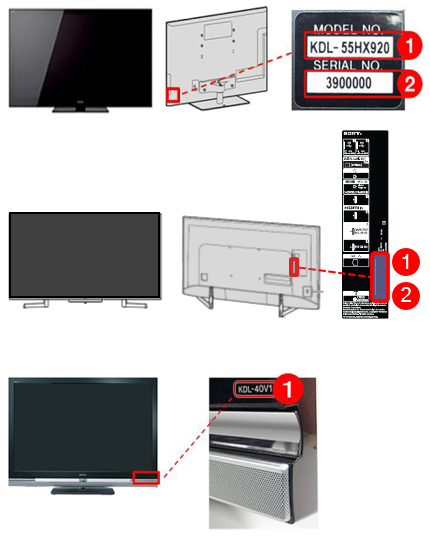
- Model name
- Serial number
TV's system information
The method for checking information such as the model name varies depending on the software version for Sony's Android TV™ or Google TV™ models and the release year for TVs other than Android TV or Google TV. Choose your TV type and check the details:
Android TV and Google TV:
- On the remote control, press the HELP button.
Notes: If your remote control does not have a HELP button, refer to the Note below step 2. - The next steps will depend on your TV menu options:
- Select System information in the Status & Diagnostics or Troubleshooting and system information Category.
- Select Contact & Support.
- For W8L, X64L_X70L_X74L_X75L, X77L_X78L, W8K, X74K_X75K, W8, X7 series: The model name is displayed at the bottom left of the screen.
The screen varies depending on your TV model. The following are examples.


Notes: The following procedure is also available depending on the model.
- Open the
 Settings screen.
How to access Settings
Settings screen.
How to access Settings
- If the remote control has a Quick Settings (
 or
or  ) button, press the Quick Settings button and select Settings.
 - If the remote control does not have a Quick Settings ( or ) button, press the HOME button and select Settings.
- The next steps will depend on your TV menu options:
- Select Help and Feedback → Help → Status & Diagnostics → System information
- Select Apps → Help → System information in the Status & Diagnostics or Troubleshooting and system information Category
- Select Help → System information in the Troubleshooting and system information Category
- Select BRAVIA Settings → Customer Support → Contact & Support
TVs other than Android TV or Google TV: