IMPORTANT: This article applies to Google TV. For Android TV™ models, refer to the Adjusting the Picture setting on my Android TV article. For other BRAVIA TVs, refer to the Adjusting the Picture setting on my LCD TV article.
Picture settings allow a wide array of changes to color, contrast, motion settings, and brightness that can improve the viewed content on your TV. Settings are adjustable for the types of content viewed such as streaming video, DVD/Blu-ray Disc, USB drive, and composite/component video content.
NOTES:
- A brief description of each item is displayed on the picture setting screen of your TV. Using this article as supplementary information, you can easily change the settings.
- You can adjust the picture settings while watching the actual TV screen.
- When Auto Picture Mode is set to On, the Picture mode will change automatically according to the content, so you may notice the brightness or saturation settings have changed suddenly. If you do not like the settings to change automatically, turn this setting Off.
- If you continue to have picture or screen issues, refer to the How to troubleshoot TV picture and screen issues article.
To access the settings, on the remote control, press the  (Quick Settings) button, then select Display & Sound — Picture — the desired option.
Click the item you want to change and check the details:
Picture mode
Change the picture quality according to the content you are watching (groups of automatic settings)
Picture mode is an image quality setting that is preset to be suitable for the genre of the program and the type of image. The following are explanations for each of the settings available in Picture mode:
NOTES:
- The availability of adjustable functions depends on the model of the TV.
- When Auto Picture Mode is set to On, the Picture mode will change automatically according to the content.
- By selecting Reset picture settings for ***, you can reset the picture settings for the current picture mode to the factory default.
- You can shortcut to access Picture mode directly by pressing the (Quick Settings) button on the remote control.
|
Picture mode
|
Overview
|
Explanation and Concept
|
|---|
| Vivid | Clear colors and contours, as well as enhanced contrast. | Suitable mode of bright and dark colors and enhanced edges for standing out in bright places such as storefronts. |
|---|
| Standard | Recommended for everyday use at home. | Suitable mode of brightness, color depth, and enhanced edges for home environments. |
|---|
| Cinema | Recommended for watching films at home. | Suitable mode to watch movies contents at home. Brightness, color depth and edges enhance are well balanced to watch movies. |
|---|
| Game | Recommended for gaming. | Suitable mode to play games, minimizing image delay (the time until the operation by the game controller is displayed on the television) as well as optimizing picture quality. |
|---|
| Graphics | Recommended for graphics and use with computers. | Suitable mode to display graphics contents showing characters or tables properly. This mode is recommended to use TV as PC monitor. |
|---|
| Photo | Recommended for photo viewing at home. | Suitable mode in standard environment, such as home. Brightness, color depth and edges enhance are well balanced to view photo contents. |
|---|
| Custom | Emphasises true reproduction of the original signal. | Mode for customizing picture settings according to preferences. |
|---|
Auto Picture Mode
Automatically selects the Picture mode based on the content being viewed
|
Setting items
|
Overview, Setting Values and Explanation
|
|---|
| Auto Picture Mode |
- Setting Values: Off or On
- The Auto Picture Mode function can only be used with HDMI input.
- If you do not like the Picture mode settings to change automatically, turn this setting Off.
|
|---|
Light sensor
Optimizes brightness according to ambient light
|
Setting items
|
Overview, Setting Values and Explanation
|
|---|
| Light sensor |
Optimise picture quality automatically by sensing the color and luminance of ambient light.
- Setting Values: Off or On
- Adjust the screen brightness according to the surrounding brightness. When the TV is in a dark environment, the screen brightness is darker to avoid extreme brightness.
|
|---|
| Auto luminance level |
Adjust the luminance level of the screen according to the luminance level of the ambient light to reduce glare.
Setting Values: Off or On
|
|---|
| Auto tone curve |
Adjusts the balance between light and dark in the picture, making it easier to see dark areas of the screen even in a blight room.
Setting Values: Off or On
|
|---|
|
Auto white balance
(only for specific models)
|
Optimise the color temperature for the current condition of ambient light.
Setting Values: Off or On
|
|---|
Brightness
Adjust the backlight to display the brightest whites and deepest blacks
|
Setting items
|
Overview, Setting Values and Explanation
|
|---|
| Brightness |
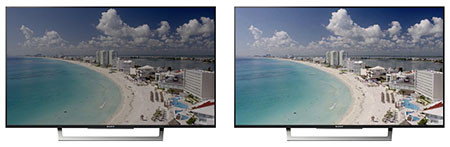
Adjust the luminance of the screen.
- Setting Values: Min (0) to Max (50)
- Up: the screen gets brighter
- Down: the screen gets darker
- Power consumption increases when screen is brighter and decreases when it is darker which is as same as lighting equipment.
|
|---|
| Contrast |
Adjust the brightness by controlling the signal range.

- Setting Values: Min (0) to Max (100)
- When the contrast is lowered, the white level becomes darker, and the difference between the light and dark parts of the white level becomes small, so the picture becomes dark.
|
|---|
| Gamma |
Adjust the light and dark balance by controlling the middle range luminance while maintaining white and black levels.

- Setting Values: Min (-3) to Max (3)
- Function that adjusts the light and dark balance. Increasing the gamma correction brightens the picture, and decreasing it darkens the picture.
|
|---|
| HDR tone mapping |
Adjust the brightness and gradation balance automatically by analysing the HDR content's luminance levels.
- Setting Values: Min (0) to Max (100)
- Only variable in case of HDR signals.
- Adjust the brightness and gradation balance automatically by analysing the HDR content's luminance levels.
|
|---|
| Black level |
Mainly adjusts the picture's black level by controlling signal level.

- Setting Values: Min (0) to Max (100)
- Increasing the black level makes the dark area details (patterns) more visible, and decreasing the black level makes the dark areas less visible.
|
|---|
| Black adjust |
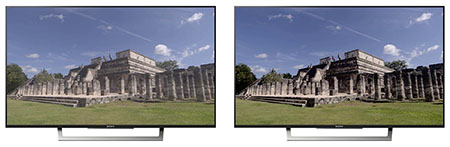
Enhance the black by analysing the luminance level of the picture in real time and automatically adjusting the dark levels.
- Setting Values: Off, Low, Medium, or High
- Function that improves the sense of contrast and depth in the image by reproducing the black parts of the image darker.
- The signals input to the TV are analyzed individually in real time and are controlled so that an optimum black correction level is achieved.
|
|---|
| Adv. Contrast enhancer |
Automatically corrects the contrast by analysing the luminance level if picture in real time.
- Setting Values: Off, Low, Medium, or High
- Optimally controls the sense of contrast of the image.
- By converting the image to the dynamic range that the TV can reproduce, the image has a brighter contrast feeling, feeling of depth, and stereoscopic effect.
|
|---|
| Auto local dimming |
Optimizes contrast by analysing the pictures luminance levels in real time and automatically adjusting the brightness of each part of the backlight.
- Setting Values: Off, Low, Medium, or High
- Function that improves reproduction of blacks and improves contrast by automatically adjusting the brightness of the backlight partially according to the partial brightness of the image.
|
|---|
| Peak Luminance |
Optimises contrast especially in dark scenes by analysing the screen's luminance levels in real time and making bright areas brighter.
Setting Values: Off, Low, Medium, or High
|
|---|
Color
Adjust the color saturation level and Hue
|
Setting items
|
Overview, Setting Values and Explanation
|
|---|
| Color |
Adjust the color tone by controlling the color saturation level.

- Setting Values: Min (0) to Max (100)
- Function that makes the color depth deeper or paler.
|
|---|
| Hue |
Shifts the overall color in the red (R) and green (G) direction.
- Setting Values: R50 to G50
- Function that shifts the hue towards red or green. Mainly used to adjust the analogue signal image whose hue tends to shift during transmission.
|
|---|
| Color temperature |
Adjust the color temperature that is standard for color reproduction.
- Setting Values: Warm, Natural, Cool, Expert1, or Expert2
- Function that adjusts the color temperature as a reference for color reproduction of images.
- It can be adjusted to four stages that emulate "day white" or the "bulb color" of electric lighting.
|
|---|
| Live Color |
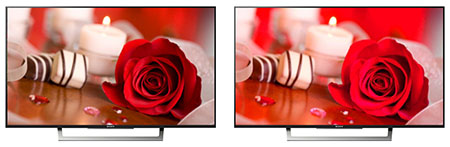
Adjusts the vividness of colors by correcting the strength of each color.
- Setting Values: Off, Low, Medium, or High
- Function that expands the colors of the image to the reproducible colors of the TV, and achieves vivid color reproduction.
- Color expansion of the input signal is not performed when set to Off.
- At Low or higher, expansion of the color reproduction range is performed.
|
|---|
Clarity
Adjust the picture clarity and reduce roughness
|
Setting items
|
Overview, Setting Values and Explanation
|
|---|
| Sharpness |
Adjust the picture detail by emphasizing edges and details of objects and people in the image, as well as controlling noise balance.

- Setting Values: Min (0) to Max (100)
- 50 is the reference. Raising it above 50 makes the contours and details clearly visible, and lowering it blurs the picture.
|
|---|
| Reality Creation / Resolution |
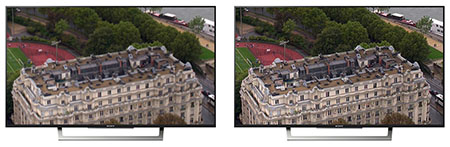
Enhances the detail of the video by performing Super Resolution processing and noise reduction while analysing the picture in real time. Resolution is adjustable by selecting Manual.
- Setting Values: Auto, Manual, or Off
- Adjust the Resolution (Min (0) to Max (100)) by selecting Manual.
- Ability to reproduce images with fine detail by emphasizing details in the image using Sony’s proprietary database type super resolution function.
|
|---|
| Random noise reduction |
Reduces dot noise and color noise that tends to appear in dark areas of the screen.

- Setting Values: Off, Low, Medium, High, or Auto
- Random noise appears as rough noise during screen movement, and also appears when the reception state is poor with analog broadcasting.
- Random noise tends to occur when the broadcasting station raises the sensitivity of the camera and is often seen in dark scenes.
- This function reduces repetitive random noise.
|
|---|
|
Digital noise reduction
|
Reduces noise seen around letters and compression noise, such as block noise.

- Setting Values: Off, Low, Medium, High, or Auto
- Digital noise, such as mosquito noise, easily occurs in images such as terrestrial digital broadcasts, as well as other noise that appears to be blocky. This function reduces this video compression noise.
|
|---|
| Smooth gradation |
Creates smooth graduations on flat areas of the picture by reducing noise that appears gradually and streaks in the graduation part of the picture.
- Setting Values: Off, Low, Medium, or High
- Function that eliminates and smooths out noise (referred to as banding) appearing gradually and as stripes in the gradation parts of the image.
|
|---|
Motion
Refines moving images and optimizes picture quality based on video content
|
Setting items
|
Overview, Setting Values and Explanation
|
|---|
| Motionflow |
Adjust Smoothness and Clearness to your preference.
- Setting Values: Auto, Custom, or Off
- Function that increases the number of video frames and displays moving images smoothly.
- Adjust the Smoothness and Clearness by selecting Custom.
- Smoothness:
- Adjust the strength of smoothness by using frame interpolation of input signal.
- Setting Values: Min (0) to Max (3)
- Clearness:
- Adjust the strength of clarity by inserting black frame to reduce motion blur.
- Setting Values: Min (0) to Max (3)
|
|---|
|
Film Mode*(GB), CineMotion*(US)
|
Detects video of films and other content, and optimises picture quality by using IP (Interlaced-Progressive) conversions and frame interpolation.
- Setting Values: Auto or Off
- Function that smoothly reproduces the motion of film content such as movies (images shot at 24 frames per second).
|
|---|
*This item name varies by region or area.

