Select another model
Follow these steps to troubleshoot this issue:
Before you start
Update the headphones' software to the latest version. Doing so may resolve the issue. Perform the update before proceeding.
Select your issue:
Sound skips
Before you start
- Radio interference will affect the Bluetooth communication between the headphones and playback device. The interference is likely to occur in a crowded place, near a store's cash registers, near a microwave, near traffic lights or automatic doors, inside a crowded train or in a station, etc. To avoid interference, move the headphones and speaker closer, or set the sound quality mode to Prioritize Stable Connection in the Sony | Sound Connect app. If the issue does not occur in a place where there is no interference, the headphones are not malfunctioning.
- Changing the wireless playback quality settings on the transmitting device may improve the issue. For details on the settings, refer to the manuals supplied with the device.
- When the Adaptive Sound Control is turned on, the headphones detect your actions and adjusts the noise canceling function automatically. When this setting is changed, music may pause momentarily. This is not a malfunction.
Solution
Follow these steps to troubleshoot the issue:
- Switch the sound quality mode to Prioritize Stable Connection.
- Open the Sony | Sound Connect app, and connect the source device with the headphones via Bluetooth.
- In the My Device tab, select Device settings → Sound tab, and tap the
 down arrow button on the right side of the Bluetooth Connection Quality.
 - Select Prioritize Stable Connection.

- The issue is resolved
- When the sound quality is high, the audio processing load will be heavy and may cause the audio to skip. By changing the Bluetooth Connection Quality setting, the load will be reduced and may resolve the issue.
- The issue is not resolved
- Go to the next troubleshooting step.
- Stop the Bluetooth connection to any device other than the headphones.
- The issue is resolved
- The sound can skip when another device (smartwatch etc.) is also connected.
- The issue is not resolved
- Go to the next troubleshooting step.
- Close all apps except the one you are currently using.
- The issue is resolved
- The sound can skip when multiple apps are open at one time.
- The issue is not resolved
- Go to the next troubleshooting step.
- Try the following procedure, then check if the issue is resolved.
- Turn off and on the headphones.
Press and hold the  (power) button for about 2 seconds or more.
 - Reset (restart) the playback device.
Since the playback device may be temporarily malfunctioning, turn off the device once, and turn it on again. - Bring the headphones and the playback device closer together.
- The issue is resolved
- The issue may have been caused by a temporary malfunction of the headphones or the playback device.
- The issue is not resolved
- Go to the next troubleshooting step.
-
Reset the headphones.
For details on how to reset the headphones, refer to the Help Guide.
Hint: If your headphones model does not appear in the device list of the playback device, turn off the Bluetooth setting in the device and turn it on again, or leave the Bluetooth setting once and return to try the connection again.
- The issue is resolved
- The issue may have been caused by a temporary malfunction of the headphones.
- The issue is not resolved
- Go to the next troubleshooting step.
- Initialize the headphones and pair them with the playback device again.
- Initialize the headphones.
Initialization returns the headphones to the factory settings and all Bluetooth pairing information is deleted.
For details on how to Initialize the headphones, refer to the Help Guide.
Note: Initialization returns the headphones to the factory settings and all Bluetooth pairing information is deleted.
- Refer to the appropriate article to perform the pairing again:
- The issue is resolved
- The issue may have been caused by a temporary malfunction of the headphones or the playback device.
- The issue is not resolved
- Go to the next troubleshooting step.
- Check if the issue also occurs when connected with other devices.
- The issue is resolved
- The playback device that was initially connected may be malfunctioning. Consult the manufacturer of the device.
- The issue is not resolved
- The headphones may be malfunctioning, and service may be required.
Sound quality is low or noise occurs
Before you start
- If you feel the sound is too loud, turn down the volume on the connected device.
- When playing music, if the headphones and the device are connected via HFP (Hands-free Profile) or HSP (Headset Profile), switch the Bluetooth connection to A2DP profile.
- If you connect the headphones to the previously connected device, the headphones may only establish the HFP or HSP Bluetooth connection when it is turned on. Use the connected device to connect via A2DP.
- When listening to music from a computer, the sound quality may be poor (difficult to hear the singer’s voice, etc.) for the first few seconds. This is due to the computer specifications (priority on stable connection at the start of transmission and then switches to priority on sound quality several seconds later) and is not a headphones)' malfunction.
If the sound quality does not improve after a few seconds, operate the computer to connect to the headphones via A2DP. For details, refer to the manuals supplied with the computer. - If you are in a quiet place, or depending on the type of the noise, you may feel the noise canceling function is weak or the noise is heard louder. If this happens, remove the headset and wear it again.
- If the mesh in front of the headphones’ microphones is dirty, noise or strange sound may be heard. Clean the headphones’ microphones and check to see if the issue is resolved. For details, refer to the How to care for and clean your WH-1000XM6 headphones article.
- Radio interference will affect the Bluetooth communication between the headphones and playback device. The interference is likely to occur in a crowded place, near a store's cash registers, near a microwave, near traffic lights or automatic doors, inside a crowded train or in a station, etc. To avoid interference, move the headphones and speaker closer, or set the sound quality mode to Prioritize Stable Connection in the Sony | Sound Connect app.
Solution
Follow these steps to troubleshoot the issue:
- Select the situation when noise is heard:
- Noise is heard when the headphones are exposed to wind

To reduce the wind noise, turn Off the Ambient Sound Control. Go to step 4.- Noise is heard while walking or running

When the Ambient Sound Control is On, the vibration of walking or running may be transmitted from your body and cause noise. To avoid this, turn Off the Ambient Sound Control. Go to step 4.- A rustling noise is heard when I move my body or head
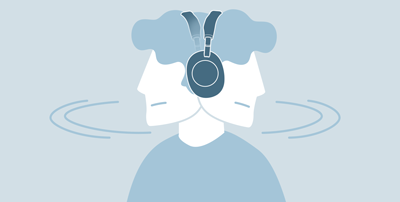
The headphones' microphone and your ear may be in contact with each other. Check how to wear the headphones. Go to step 3.- White noise (a small electrical noise with continuous static sound) is heard
- When the Ambient Sound Mode function is OFF:
When you are in a quiet environment, if no music is playing or the volume is low, white noise may be heard. This is normal and within specifications. - When the Ambient Sound Mode function is ON:
White noise is generated depending on the level of the Ambient Sound function. You can adjust the level using the Sony | Sound Connect app. In the My Device tab, select Device settings → Sound tab, and select Ambient Sound Control to adjust the setting. - When using the headphones while charging:
Depending on the charging conditions (model of the USB AC adaptor, etc.), electrical noise that occurs during charging may be heard from the headphones. - When you are talking on the phone:
During a call, the microphones will pick up ambient sound regardless of the Ambient Sound Control function setting. This is an effect of the Sidetone function, which allows your voice to be heard naturally and makes it more comfortable to talk during a call. If you hear ambient sounds, headphone operational sounds, or white noise during a call, that is also an effect of the Sidetone function, not a malfunction.
- An echo is heard when I cover the headphones or built-in microphone with my hand.
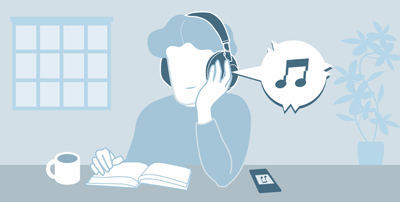
Leaving your hand from the headphones will resolve the issue.- Noise is heard when the surrounding ambient noise is loud, such as when I am in a station or near a construction site.

When the Ambient Sound Control is On, the surrounding noises can be easily heard. Turn off the Ambient Sound Control function.- Noise is heard while talking on the phone

Go to step 2.- None of the conditions listed
If you hear your heartbeat or breathing, or if noise occurs when you change your posture such as moving your neck, this is normal and not a malfunction.
For other noises, go to step 7.
- If noise is heard during a phone call, select the appropriate situation:
- The noise occurs in my voice
- Go to step 3.
- The noise occurs in the other person's voice
- When using a video calling application on a computer, switch the Bluetooth connection HFP or HSP on the computer.
Note: During a video call, sound quality may become low due to the conditions of the communication line.
Go to step 7.
- Fit the headphones to your ears firmly.
If the earbuds are not worn properly, the phone call quality may decrease. make sure that headphones are worn properly. For details, refer to the Help Guide.
- The issue is resolved
- The size or fitting conditions may have caused the issue.
- The issue is not resolved
-
- If a rustling noise is heard when I move my body or head, go to step 4.
- If noise is heard while talking on the phone, go to step 5.
- Turn off the Ambient Sound Mode.
- Open the Sony | Sound Connect app, and connect the source device with the headphones via Bluetooth.
- In the My Device tab, select Ambient Sound Control to set it to Off.

- The issue is resolved
- The issue may have occurred because of the conditions where the headphones detected the ambient noise. The noise may also occur when you are in a place that uses devices that generate ultrasonic waves to deter or eliminate rodents and pests. If you are bothered by these noises, turn off the Ambient Sound Mode functions.
- The issue is not resolved
- Go to step 7.
- Try speaking louder.
- The issue is resolved
- The headphones have a noise-reduction feature that suppresses background noise during a phone call. Because of this, when you speak quietly, the headphones may detect your voice as noise.
- The issue is not resolved
- Go to the next troubleshooting step.
- Use the headphones in a quieter place.
- The issue is resolved
- The ambient sound may have been the cause.
- The issue is not resolved
- Go to the next troubleshooting step.
- Try the following procedure:
- Turn off and on the headphones.
Press and hold the (power) button for about 2 seconds or more.
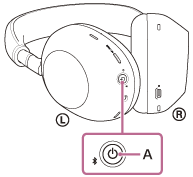
- Restart the connected device.
- The issue is resolved
- The issue may have been caused by a temporary malfunction of the headphones.
- The issue is not resolved
- Go to the next troubleshooting step.
-
Reset the headphones.
For details on how to reset the headphones, refer to the Help Guide.
Hint: If your headphones model does not appear in the device list of the playback device, turn off the Bluetooth setting in the device and turn it on again, or leave the Bluetooth setting once and return to try the connection again.
- The issue is resolved
- The issue may have been caused by a temporary malfunction of the headphones.
- The issue is not resolved
- Go to the next troubleshooting step.
- Initialize the headphones.
Initialization returns the headphones to the factory settings and all Bluetooth pairing information is deleted.
- Initialize the headphones.
Initialization returns the headphones to the factory settings and all Bluetooth pairing information is deleted.
For details on how to Initialize the headphones, refer to the Help Guide.
Note: Initialization returns the headphones to the factory settings and all Bluetooth pairing information is deleted.
- Refer to the appropriate article to perform the pairing again:
- The issue is resolved
- The issue may have been caused by a temporary malfunction of the headphones.
- The issue is not resolved
- The headphones may be malfunctioning, and service may be required.
Solution
- Select when the issue occurs:
- The issue occurs in crowded places but does not occur when I am at home.

Using the headphones in a crowded place such as on a train or busy road, nearby devices may interrupt Bluetooth communication and cause sound interruptions, interference, or noise. If the issue does not occur at home or somewhere with fewer nearby devices, then it is Bluetooth communication interference causing the issue, and not headphones.- The issue occurs when I use the headphones in a quiet place.

Go to the next troubleshooting step.
- Stop the Bluetooth connection to any device other than the headphones.
- The issue is resolved
- Other Bluetooth devices may interrupt communications between your mobile device and your headphones.
- The issue is not resolved
- Go to the next troubleshooting step.
- Close all apps except the one you are currently using.
- The issue is resolved
- The sound can skip when multiple apps are open at one time.
- The issue is not resolved
- Go to the next troubleshooting step.
- Use the Sony | Sound Connect app to set the Sound Quality Mode to Prioritize Stable Connection.
Note: If you are using an Apple device such as an iPhone smartphone or iPad tablet and you are playing a music file with an AAC (Advanced Audio Coding) file format, set the sound quality mode to Prioritize Sound Quality. For other devices and file formats, set the Sound Quality Mode to Prioritize Stable Connection.
- Open the Sony | Sound Connect app, and connect the headphones and the device via Bluetooth.
- In the My Device tab, select Device settings → Sound tab, and set the Bluetooth Connection Quality to Prioritize Stable Connection.

- The issue occurs on all music files.
- The headphones setting was the cause of the issue.
- The issue occurs on only one or some specific files.
- Go to the next troubleshooting step.
- Check if the issue occurs on all music files.
- The issue is resolved
- Go to the next troubleshooting step.
- The issue is not resolved
- The issue may have been caused by the file format. High-resolution audio takes up more file capacity because it contains more information. Due to this, it causes a greater burden when using Bluetooth communication. Convert the files to a different file format, such as MP3 or AAC.
- Check if the issue also occurs when connected using the headphone cable and while charging the source device?
- The issue occurs only when charging
- Electrical noise generated during charging may be heard from the headphones. Stop charging or, if the headphones support the Bluetooth feature, connect the device via Bluetooth.
- The issue is not resolved, or the issue occurs even when not charging
- Go to the next troubleshooting step.
- Check if the issue also occurs when connected with other devices.
- The issue is resolved
- The playback device that was initially connected may be malfunctioning. Consult the manufacturer of the device.
- The issue is not resolved
- The headphones may be malfunctioning, and service may be required.
Go to the Headphones Troubleshooting Guide

