IMPORTANT: This article applies only to specific products and/or operating systems. Check Applicable Products and Categories for details.
The following steps and images were created using a 2014 TV model. The images and steps may differ slightly depending on the TV model being used. Check the manual for model-specific information.
Manuals are posted on your model support page.
To set up and use the Wi-Fi Direct® feature of the TV, follow these steps:
- Turn on the Built-in Wi-Fi setting on your TV.
- On the supplied remote control, press the HOME button.
- Select Settings.

- Select System Settings or Network.
- If the TV shows Network, skip to step 6.
- Select Setup.
- Select Wi-Fi Setup.
- Select Built-in Wi-Fi or Built-in Wireless LAN.
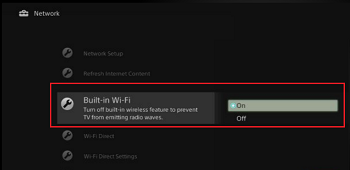
- Select ON.
- Turn on the Wi-Fi Direct setting of the TV.
- On the supplied remote control, press the HOME button.
- Select Settings.
- Select System Settings or Network.
- If the TV shows Network, skip to step 6.
- Select Setup.
- Select Wi-Fi Setup.
- Select Wi-Fi Direct.
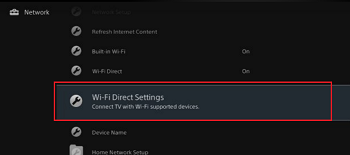
- Select ON.
- Establish Wi-Fi Direct connection to the TV.
- On the supplied remote control, press the HOME button.
- Select Settings.
- Select System Settings or Network.
- If the TV shows Network, skip to step 6.
- Select Setup.
- Select Wi-Fi Setup.
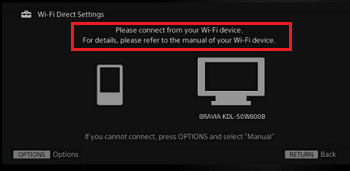
- Select Wi-Fi Direct Settings.
- Connect your Wi-Fi Direct device to the TV.
Related Info
Throw Images, Videos, and Songs from an Xperia Mobile Device to the TV